
To play the imposter game online with friends, open Online, create a room and share its invitation. Each friend joins from their own device, sees a private role and submits their own vote. Use room chat or a separate call for the conversation.
Find the Imposter supports 3–15 players per online room. If everyone is in the same place, Pass & Play supports 3–15 on one device. The browser game is free to play; you do not need to buy a separate copy for each friend.
Open online play when your group is ready. The screenshots below show the current entry screens, captured from our app in September 2026.
Choose online rather than passing one phone
| Your group | Use | Why |
|---|---|---|
| Friends in different homes | Online room | Private roles on separate devices |
| Friends together with one phone | Pass & Play | Hide the role and hand over the device |
| More than ten remote players | Two or more rooms | Keeps each room within the player limit |
| A group watching a stream | A separate playing group | Viewers should not see private role screens |
You do not need to share the game screen with the whole call. Doing that during a role reveal can show the answer to the imposter. Share the invitation link, not your private screen.
Step 1: open the online tab
Open the game and choose Online. You will see Create Online Room and Join with Code. Public-room browsing is a separate option; a friends-only evening starts with your own invitation.
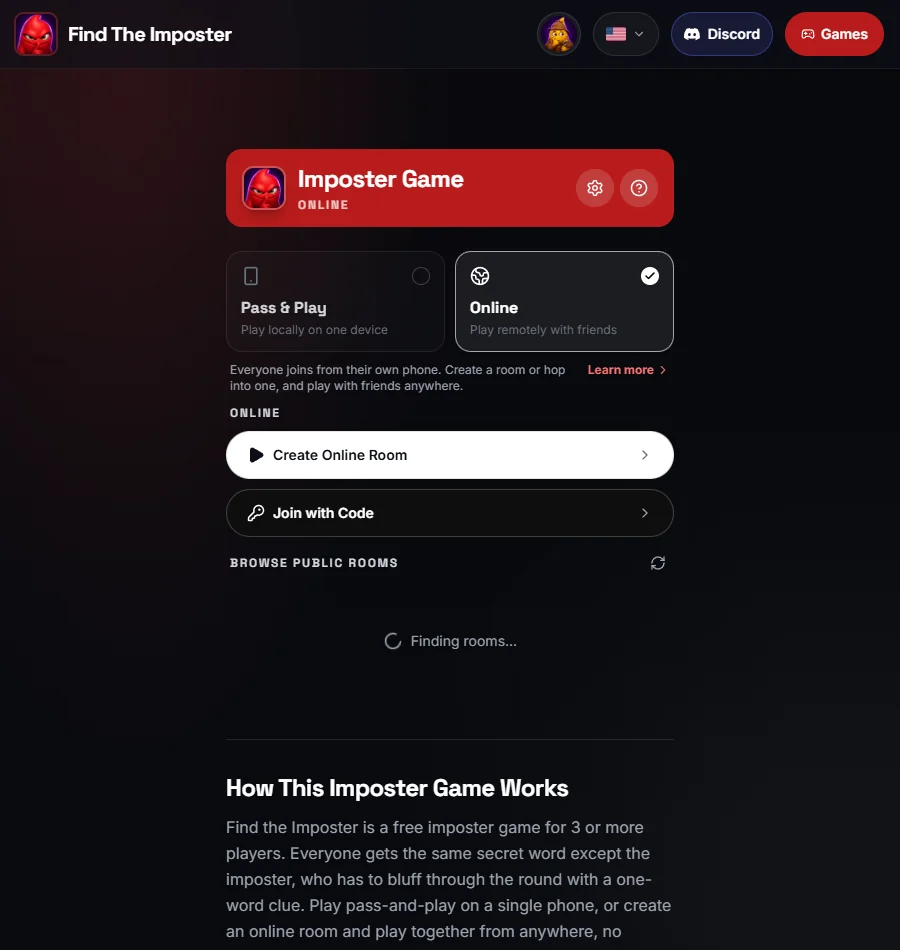
If a friend arrives on Pass & Play instead, switch to Online rather than adding every remote friend's name to a single local device. Local player names do not create remote connections.
Step 2: choose a display name and create the room
Tap Create Online Room. If you have not supplied a name, the app asks for one. Choose a name your friends will recognise; this is shown to other players in the room.
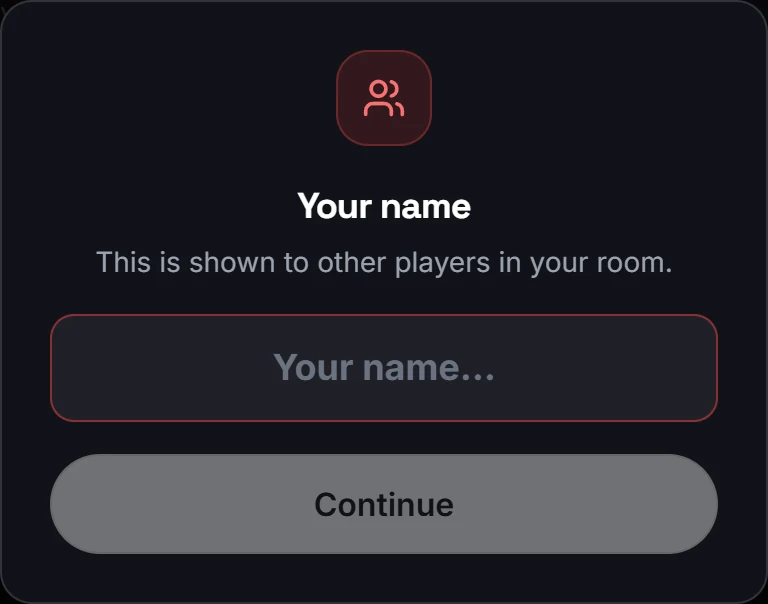
Continue through setup and use the lobby controls to check your settings. For a first game, choose one imposter and a category everyone knows. Keep optional roles off until the group understands a normal vote.
If you want a friends-only game, check the Public setting before sharing the invitation. Use join approval when you want the host to review incoming requests. An invitation can be forwarded, so send it directly to your group rather than posting it on a public feed.
Step 3: invite friends into the same lobby
Use Copy Link in the lobby and send the link to your friends. Alternatively, friends can choose Join with Code and enter the room code you see. Ask everyone to check their name and avatar in the player list before starting.
If approval is enabled, the host needs to handle the joining requests. A player waiting for approval is not necessarily disconnected. If the room is full, create another group instead of repeatedly trying the same code.
The room is the shared game. A Discord, WhatsApp or other call is only the conversation channel; joining a call alone does not add someone to the game lobby.
Step 4: agree on how you will give clues
Choose one main channel for clues: room chat or your group's preferred voice call. If two people are beside each other while also on a call, use headphones or one speaker to avoid an echo.
For a first round, let each player give one short clue in order. Start the next round with a different person. If you allow follow-up questions, give everyone a chance to answer instead of letting the loudest player direct the entire discussion.
A phone can run the game while a laptop handles the call. If you use one phone for both, try switching between them before the first reveal. Do not assume a connection delay or an interrupted microphone means someone is bluffing.
Step 5: reveal privately, discuss and vote
When the host starts, each person checks their own role. Crew members see the secret word; the imposter must work from the clues, with the category available when that hint is enabled.
Do not paste your role into chat. A clue such as “Fold” can work for umbrella; a screenshot of the word cannot. During voting, use your own game screen and follow the number of selections it requests. You do not need to send the host a private-message vote as a second system.
In a standard round, the vote decides the result: crew must catch all imposters without an innocent player in the accused group. Undercover and Mr. White use different mechanics. The full rules example explains the distinction.
A simple plan for a remote game night
These timings are a suggested schedule, not a built-in timed event.
| Part | Allow | What to do |
|---|---|---|
| Arrival | 5 minutes | Join the lobby, check names and audio |
| Practice | One round | Use a familiar category and one imposter |
| Main games | 15–20 minutes | Change first speaker and try another category |
| Finish | A final round | Let the group choose the category |
Keep the first category broad: familiar food, animals or everyday objects. Football works well when everyone follows it, but knowing your friends does not mean everyone knows the same players. Use the category ideas guide to choose fairly.
Troubleshooting without losing the group
A friend cannot join: check the exact invitation, room capacity and whether host approval is pending. Ask what the screen says rather than telling them to reinstall immediately.
Someone loses connection: let them try returning with the same browser and original invitation. Their recovery depends on room state; do not promise that every interrupted round can be restored. If necessary, regroup in the lobby before starting again.
The host sees an old screen: finish or leave the current round before refreshing. Updating in the middle of a private reveal can interrupt play. Do not clear all site data as a first step because that may remove the browser's player identity.
People talk over one another: agree on a fixed clue order and one follow-up per person. More complicated room settings will not fix a conversation where nobody can hear.
A host checklist before the first reveal
- Confirm that every player appears in the same lobby.
- Check the Public setting and handle pending joining requests.
- Agree on the category and clue order.
- Stop screen sharing before anyone reads a role.
- Keep the original invitation in your group message thread.
You can send this suggested message with your invitation: “Open the game link on your own device and choose a name we recognise. We will give clues in the call, but read roles and vote inside the game. Keep your role screen private. If you get stuck, tell me what your screen says.”
Add the actual invitation and time yourself. This is a suggested message, not an automatic invitation feature.
Common questions
Is it free for every player?
Yes, the game is free to play in the browser. The site can show advertisements; free does not mean ad-free. Each friend joins the same service from their own device.
Do we need to download an app?
No. Open the website in a browser. Using a separate call app is optional if you choose that for conversation.
Can more than ten friends play?
Use separate rooms with at least three players in each. For twelve people, two groups of six are simpler than trying to squeeze everyone into one lobby.
Can I share my screen on Discord?
Keep private roles and words off the stream. Share a link to join the game instead. Even if everyone promises to look away, a shared role screen is easy to expose accidentally.
Are drawing games included online?
There is no integrated drawing canvas. The drawing variation guide explains paper, a second device and optional external boards. Those tools do not automatically manage this game's roles or votes.
Create a free online room, invite your friends and try a familiar word first.